Google Cloud
Virtual Machines
DE53 – Cloud Infrastructure
Antoine · Arnaud · Benjamin
Agenda
- 01 – Compute Engine
- 02 – Common Compute Engine Actions
- 03 – VM Access & Lifecycle
- 04 – Compute Options
- 05 – Compute Pricing
- 06 – Special Compute Configurations
- 07 – Images
- 08 – Disk Options
What is Compute Engine?

- Infrastructure as a Service (IaaS)
- Run virtual machines on Google's global infrastructure
- No upfront investment – pay per second for what you use
- Scale to thousands of vCPUs on demand
- Per-second billing (1-minute minimum)
Key Features
- High-performance and customizable virtual machines
- Choice of CPU platform: Intel or AMD
- Automatic sustained use discounts
- Global load balancing and autoscaling support
- Native integration with all Google Cloud services

Available Resources: compute
- 1 vCPU = 1 hardware hyper-thread (not a full physical core)
- Network throughput: ~2 Gbps per vCPU
- Maximum: 200 Gbps at ~176 vCPUs
- Predefined machine types or fully custom configurations
- Four machine families: General-purpose, Compute-Optimized, Memory-Optimized, Accelerator-optimized
Available Resources: Storage
- Standard Persistent Disk (HDD) – large sequential workloads, low cost
- SSD Persistent Disk – low-latency random I/O, databases
- Local SSD – physically attached, ephemeral, very high Input / Output Operations Per Second (IOPS)
- Cloud Storage – object storage accessed over the network
Available Resources: Networking
- Virtual Private Cloud (VPC) – your isolated network
- Firewall rules – control inbound and outbound traffic
- Regional or global load balancing
- Throughput: ~2 Gbps/vCPU, max 200 Gbps
- Network throughput shared with Disk I/O bandwidth
Tensor Processing Units (TPU)
- Google's custom Application-Specific Integrated Circuits (ASIC) designed for machine learning
- First deployed internally in 2015, announced publicly in 2016
- Accelerates TensorFlow matrix computation workloads
- Available via the Cloud TPU service
- Separate billing model from standard VMs
02
Common Compute Engine Actions
Instance Metadata & Startup Scripts
- Every VM has a metadata server (IP: 169.254.169.254)
- Stores key-value pairs: project info, zone, custom values
- Startup scripts: run automatically at every boot
- Shutdown scripts: run on graceful shutdown
- Large scripts can be referenced from Cloud Storage
Moving a VM Instance
- Within the same region:
gcloud compute instances move - Automated: moves VM and its persistent disks together
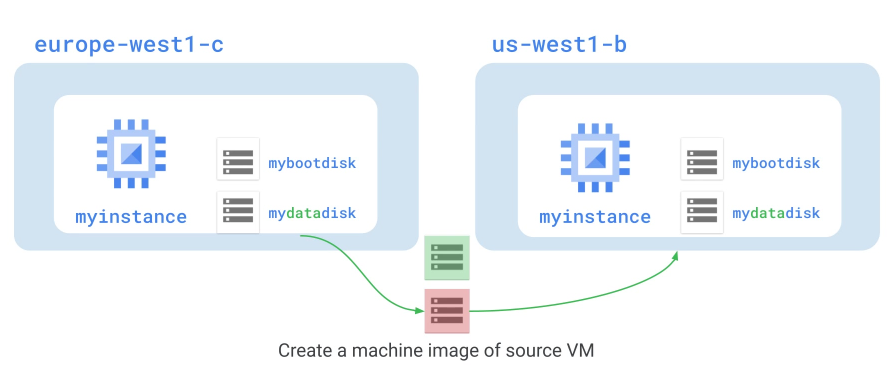
- Cross-region: manual, snapshot → create new disk → new VM
- Update DNS, IP references, and load balancer configs after move
Snapshots: Backup & Migration

- Take a snapshot of any persistent disk at any time
- Stored in Cloud Storage – durable and globally accessible
- Incremental: only changed blocks stored after the first snapshot
- Use case 1: backup – protect against accidental data loss
- Use case 2: migration – restore in a different zone or region
Snapshots: HDD → SSD Migration
And if Performance needs have grown since the VM was created?
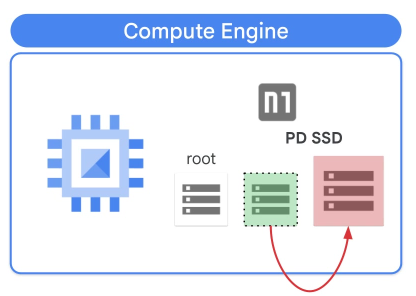
- Snapshot the existing HDD persistent disk
- Create a new SSD persistent disk from that snapshot
- Attach the new SSD disk to the VM
- Result: significant IOPS boost with zero data loss
Persistent Disk Snapshot Features
- Incremental storage – very efficient after the first snapshot
- Schedulable – automate daily/weekly backups
- Restore across zones within the same region
- Deleting one snapshot doesn't destroy the chain
- Use to create new bootable disks or entire VM instances
Resize a Persistent Disk
- Disks can be grown while the VM is running
- No need to stop the VM or detach the disk
- After resizing: also resize the filesystem inside the OS
- Disks can only be enlarged – shrinking is not supported
- Works for both HDD and SSD persistent disk types
03
VM Access & Lifecycle
Accessing Linux VMs: SSH
- Protocol: SSH over TCP port 22
- Requires a firewall rule allowing tcp:22 to the VM
- Option 1: "SSH" button in Cloud Console (browser terminal)
- Option 2:
gcloud compute ssh INSTANCE_NAME(handles keys automatically) - Option 3: Any SSH client with your public key uploaded to metadata
Accessing Windows VMs: RDP
- Protocol: RDP over TCP port 3389
- Requires a firewall rule allowing tcp:3389
- Step 1: Set Windows password in Cloud Console ("Set Windows Password")
- Step 2: Connect with any RDP client using the VM's external IP
- Cloud Console also offers an in-browser RDP option
VM Lifecycle: Main States
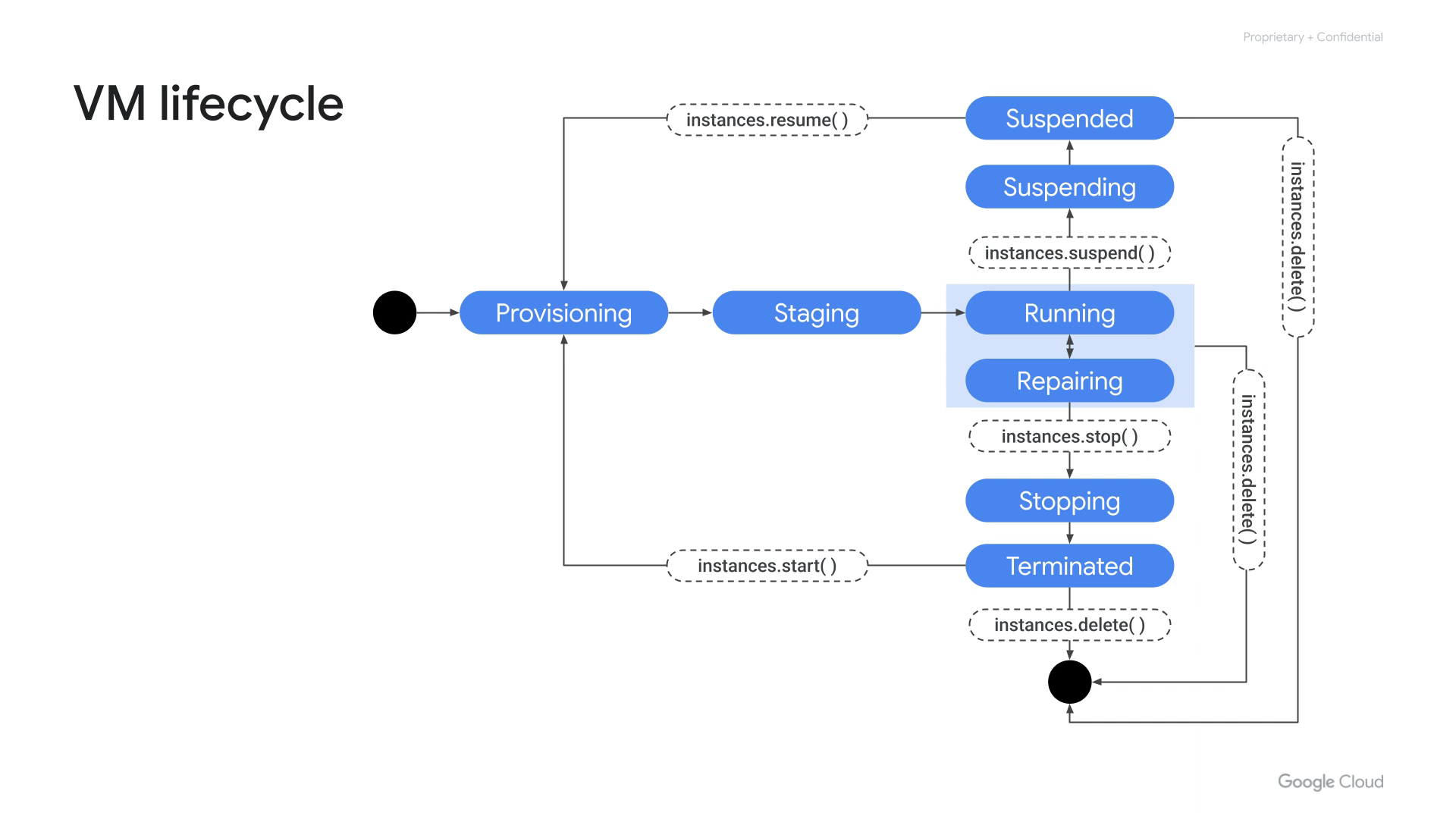
Provisioning: resources being allocated by Google
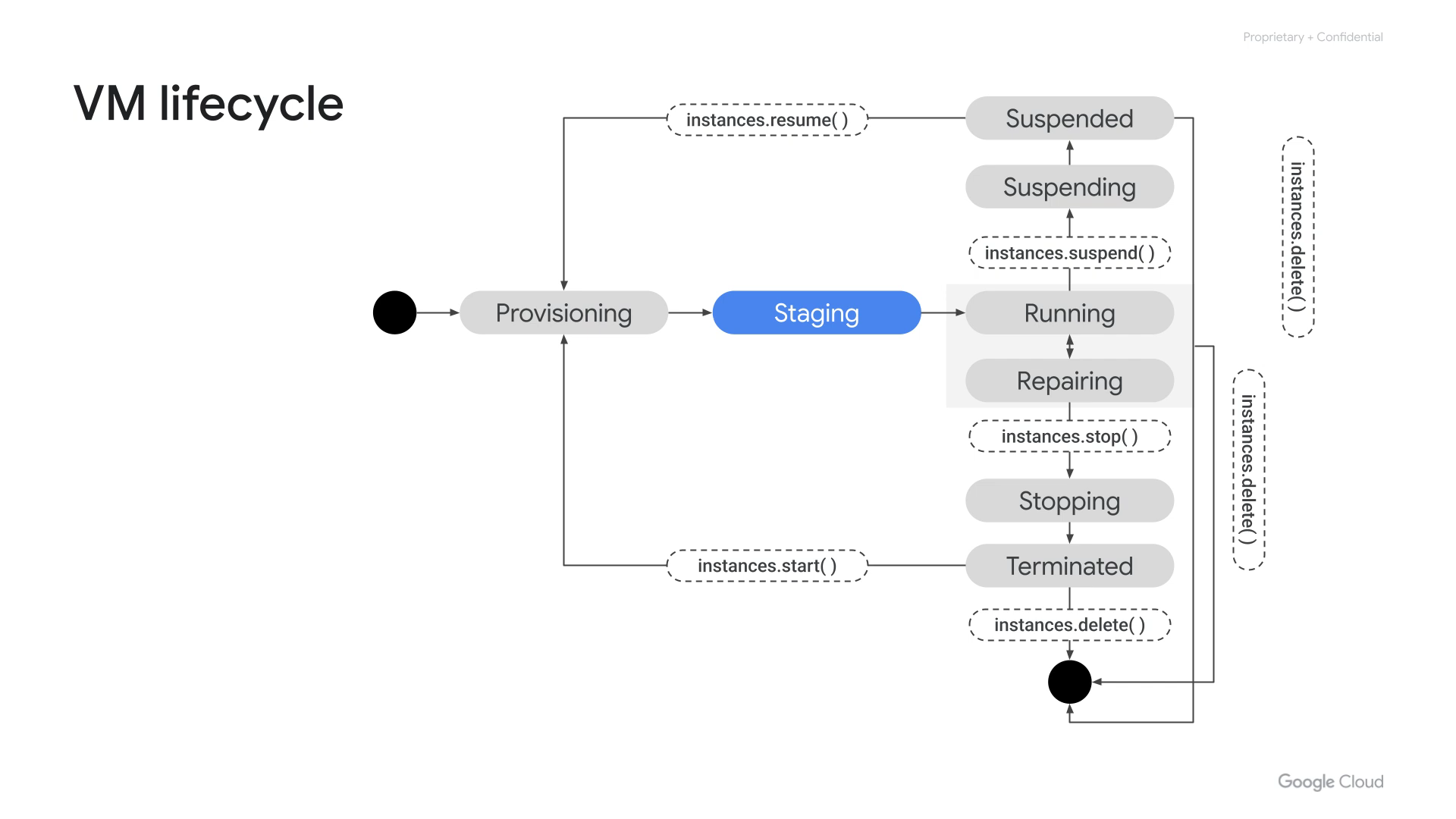
Staging: resources acquired, operating system booting
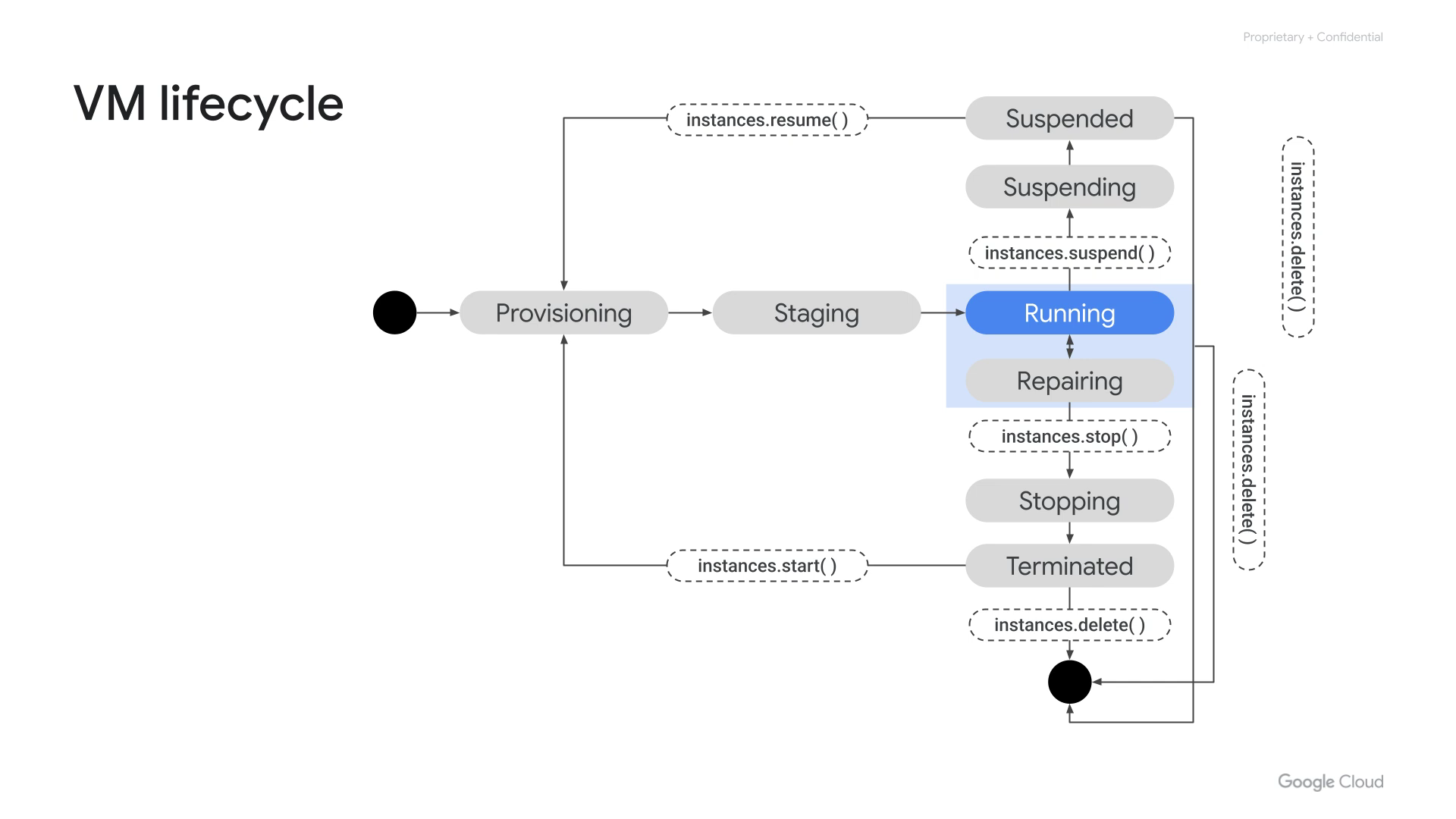
Running: VM fully operational and accessible
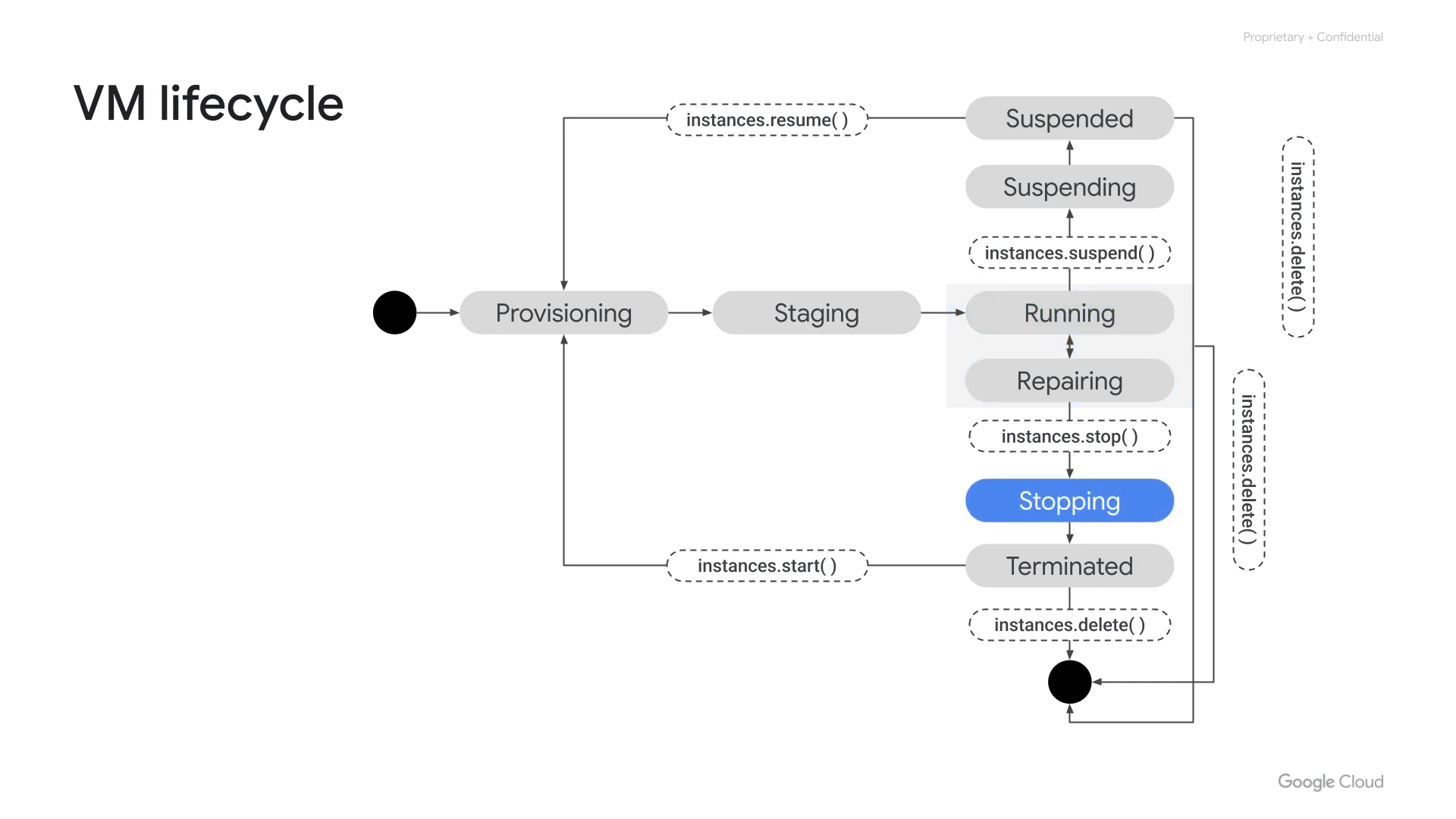
Stopping: VM shutting down gracefully
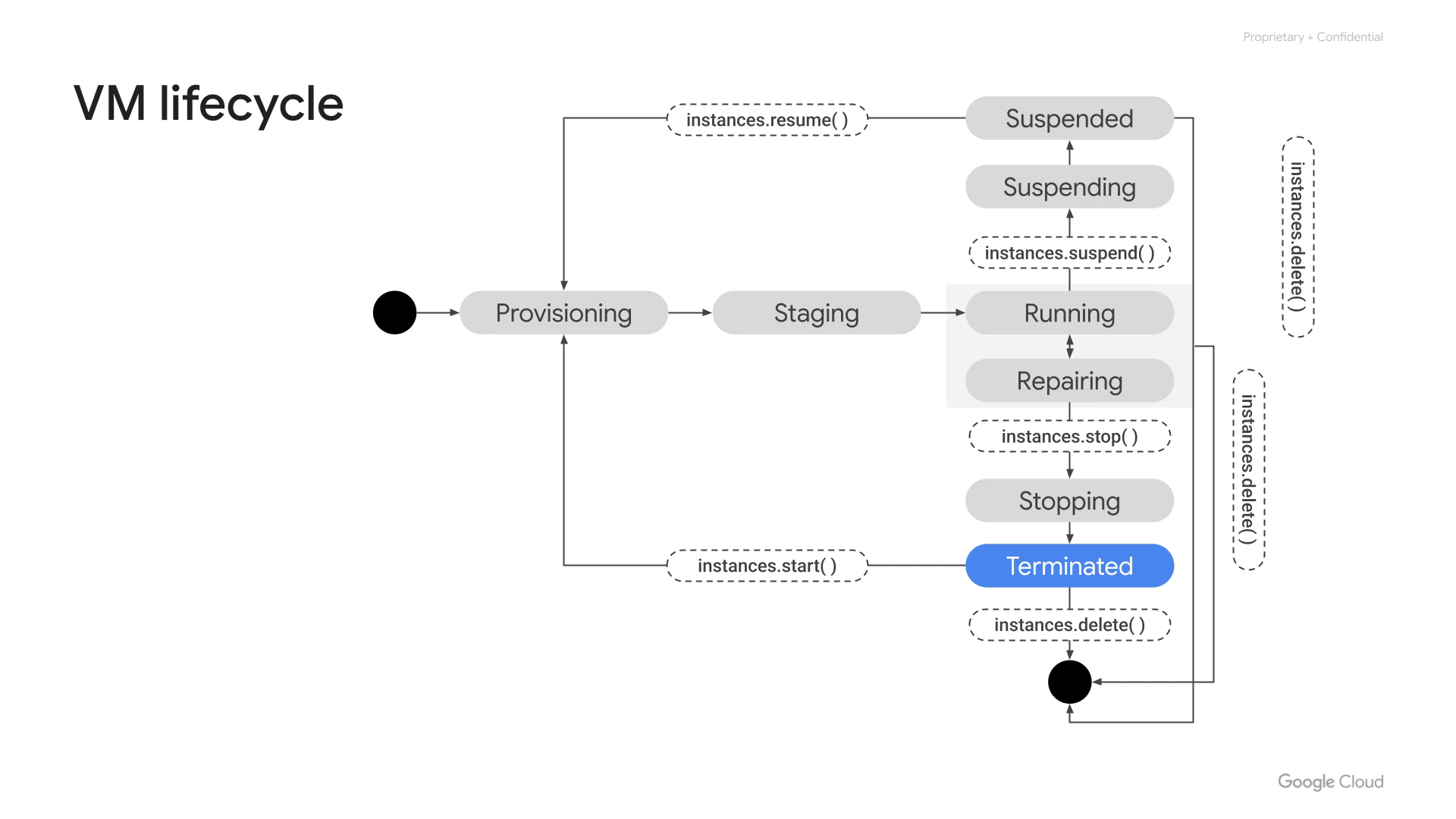
Terminated: VM stopped, CPU/RAM freed, disk persists
VM Lifecycle: Additional States
- Suspended: VM hibernated, memory saved to disk
- Repairing: Google recovering the VM from a hardware failure
- Suspended VM: no CPU/memory charges; disk and IP still billed
- From Terminated: can restart, delete, change machine type, or change image
Changing VM state from running
| Methods | Shutdown Script time | State | |
|---|---|---|---|
| reset | console, gcloud, API, OS |
no | remains running |
| start | console, gcloud, API |
no | terminated ➜ running |
| reboot | OS: sudo reboot |
~90 sec | running ➜ running |
| stop | console, gcloud, API |
~90 sec | running ➜ terminated |
| shutdown | OS: sudo shutdown |
~90 sec | running ➜ terminated |
| delete | console, gcloud, API |
~90 sec | running ➜ N/A |
| preemption | automatic | ~30 sec | N/A |
"ACPI Power Off"
Availability Policy
- On host maintenance:
- Live migrate (default): VM moves transparently, no interruption
- Terminate: VM stops during host maintenance event
- Automatic restart: auto-restart after hardware failure?
- VMs with GPUs and preemptible VMs cannot live-migrate
OS Patch Management
- Managed service to keep VM operating systems up to date
- Patch compliance reporting: which VMs are missing patches?
- Patch deployment: apply patches across your entire VM fleet
- Schedule patch jobs during maintenance windows
- Supports both Linux and Windows VMs
Billing When a VM is Stopped
- Terminated VM: no charge for vCPU and memory
- Persistent disks: still charged while VM is stopped
- Reserved static external IP: still charged if not in use
- Custom images stored: charged for storage
- Tip: delete or release unused resources to avoid surprise charges
04
Compute Options
Three Ways to Create a VM
- Google Cloud Console – visual, guided, great for exploration
- gcloud CLI – scriptable, repeatable, fast
- REST API – programmatic, for custom tooling and Infrastructure as Code
All three expose the same configuration options.
Machine Type Naming Convention
[FAMILY]-[TYPE]-[vCPUs]
n1-standard-4→ N1 family, standard memory ratio, 4 vCPUs, 15 GB RAMe2-medium→ E2 family, medium (2 vCPUs, 4 GB)c2-standard-8→ C2 family, standard ratio, 8 vCPUs- standard = balanced | highmem = more RAM | highcpu = less RAM
Machine Families: General-Purpose
- E2: cost-optimized, shared-core options, best price-performance
- N1: flexible, supports GPUs & TPUs, widest OS/feature support
- N2: high-performance Intel Cascade Lake / Ice Lake
- N2D: AMD EPYC – largest VMs in general-purpose category
- Tau T2D: scale-out Intel x86 | T2A: ARM Ampere Altra
Machine Families: Compute-Optimized
- C2: Intel Cascade Lake – highest single-thread performance
- C2D: AMD EPYC Milan – highest performance per core in GCP
- H3: Intel Sapphire Rapids – latest HPC-grade hardware
- Best for: High Performance Computing, gaming servers, EDA, CPU-bound simulations
Machine Families: Memory-Optimized
- M1: up to 4 TB of RAM – in-memory databases
- M2: up to 12 TB of RAM – largest VM on Google Cloud
- M3: latest generation, higher memory bandwidth
- Best for: SAP HANA, in-memory analytics, large caches
- Very high memory-to-vCPU ratio, premium pricing
Machine Families: Accelerator-Optimized
- A2: NVIDIA A100 GPUs – ML training & inference at scale
- G2: NVIDIA L4 GPUs – efficient inference, video transcoding
- [A2]: high-bandwidth NVLink between GPUs for LLM training
- Best for: deep learning, GPU computing, graphics rendering
- Cannot live-migrate (GPU hardware constraint)
Custom Machine Types
- No predefined type fits? Create a custom one.
- vCPU: choose 1, or any even number
- Memory: 1 to 8 GB per vCPU, in multiples of 256 MB
- Cost: slightly higher than nearest predefined equivalent
- Extended memory: go beyond 8 GB/vCPU, up to 624 GB total
05
Compute Pricing
Pricing Fundamentals
- Per-second billing with a 1-minute minimum
- Resource-based: vCPU and memory priced separately
- Price varies by region and machine family
- Premium OS images (RHEL, Windows) add licensing charges
- Use the Google Cloud Pricing Calculator to estimate costs
Preemptible & Spot VMs: Pricing
- Up to 91% discount vs. regular on-demand VMs
- Trade-off: Google may terminate at any time
- Preemptible: max 24-hour runtime
- Spot VMs: no maximum runtime – newer model
- Best for: batch processing, fault-tolerant, stateless workloads
Committed Use Discounts (CUDs)
- Commit to use specific resources for 1 or 3 years
- Up to 57% discount for general-purpose machine types
- Up to 70% discount for memory-optimized machine types
- Commitment is on vCPU and memory, not a specific VM
- No upfront payment required
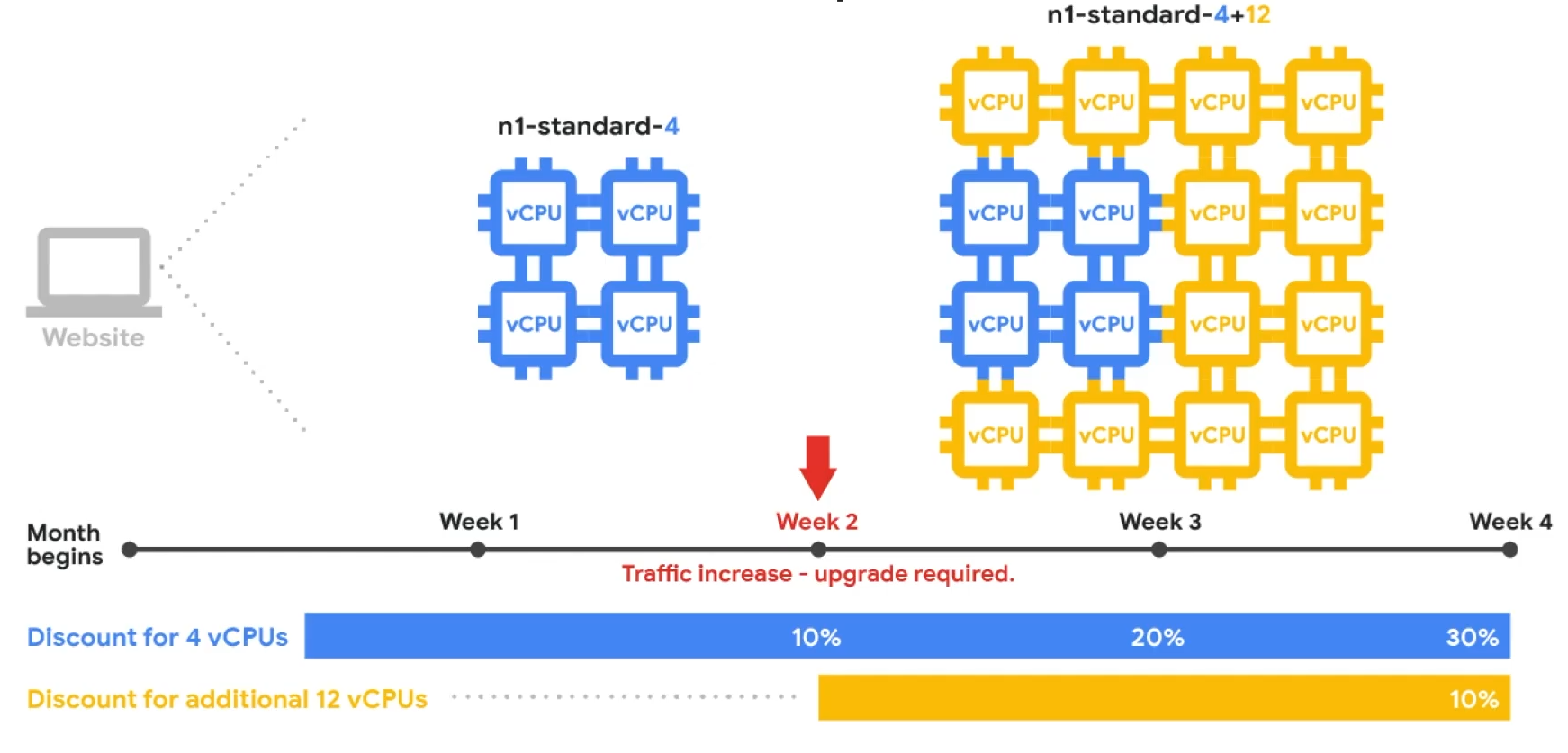
Sustained Use Discounts: Effective Rate
- 50% usage → ~10% effective discount
- 75% usage → ~20% effective discount
- 100% usage → 30% effective discount
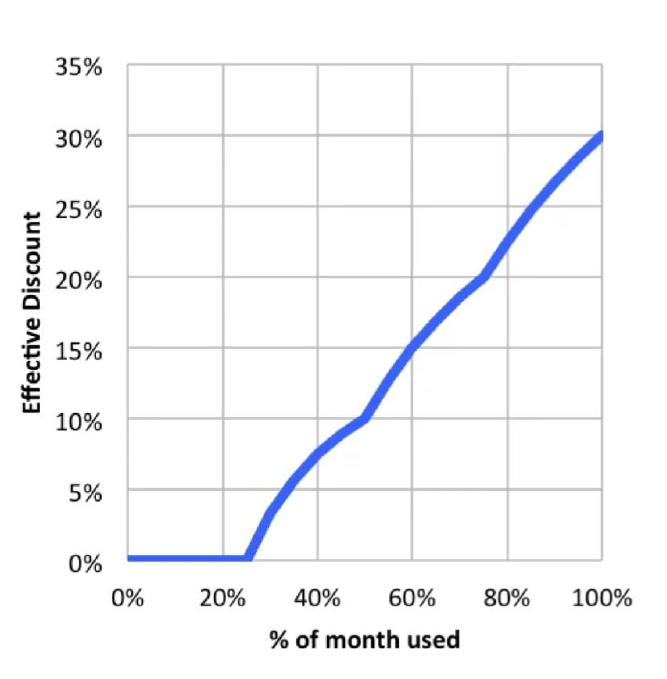
Sustained Use Discounts: Example
VM Sizing Recommendations
- Compute Engine automatically identifies over-provisioned VMs
- Recommendations appear 24 hours after VM creation
- Suggest downsizing to a smaller, cheaper machine type
- Compute Engine also has a free usage tier
- Always validate with the Google Cloud Pricing Calculator
Question 3
What is the maximum discount you can get with Committed Use Discounts on memory-optimized machine types?
- 30%
- 57%
- 70%
- 91%
Answer: C
70%, Committed Use Discounts on memory-optimized machine types can reach up to 70% off.
- A (30%) is the max Sustained Use Discount
- B (57%) is the CUD discount for general-purpose types
- D (91%) is the Preemptible / Spot VM discount
06
Special Compute Configurations
Preemptible VMs
- Up to 91% cheaper than regular on-demand VMs
- May be preempted at any time – no charge if within the first minute
- Maximum runtime: 24 hours
- 30-second preemption warning (not guaranteed)
- No live migration, no automatic restart
Spot VMs
- The latest evolution of preemptible VMs
- Same pricing model, up to 91% discount
- No 24-hour maximum runtime (key improvement over preemptible)
- Still finite capacity, may not always be available
- Capacity easier to get with smaller machine types
Sole-Tenant Nodes
- Physical server dedicated exclusively to your project
- All VMs on the node belong to you, no other customers' workloads
- Use case: compliance (PCI DSS, HIPAA) requiring physical isolation
- BYOL: bring existing Windows/software licenses
- Can fill with multiple VM sizes, including custom types
Shielded VMs
- Provides verifiable integrity for VM instances
- Secure Boot: only trusted signed bootloaders and kernels
- vTPM: virtual Trusted Platform Module for attestation
- Integrity monitoring: detects boot-time rootkits
- Requires selecting a shielded image
Confidential VMs
- Encrypts data while it's being processed (data in use)
- No code changes required – encryption is transparent
- Runs on N2D with AMD EPYC "Rome" + AMD Secure Encrypted Virtualization
- High memory capacity, high throughput, parallel workload support
- Google has no access to the encryption keys
Question 4
Which special VM type encrypts data while it is being processed in memory?
- Shielded VM
- Spot VM
- Sole-tenant node
- Confidential VM
Answer: D
Confidential VM, encrypts data in use via AMD Secure Encrypted Virtualization, even Google cannot access the keys.
- A (Shielded VM) protects boot integrity, not data in memory
- B (Spot VM) is purely a pricing model
- C (Sole-tenant node) provides physical isolation, not encryption
07
Images
What's in an Image?
- Boot loader – initializes hardware, starts the OS
- Operating system – kernel, init system, base utilities
- File system structure – directory layout, config files
- Software – pre-installed packages and tools
- Customizations – your application, settings, agents
Public Base Images
- Provided by Google, third-party vendors, and the community
- Linux: CentOS, CoreOS, Debian, RHEL(p), SUSE(p), Ubuntu, FreeBSD
- Windows: Server 2019(p), 2016(p), 2012-r2(p) + SQL Server pre-installed
- Images marked (p) are premium – additional per-second licensing charges
- Premium image prices are global – do not vary by region
Custom Images
- Create from an existing VM with pre-installed software
- Import from on-premises, workstation, or another cloud
- Management: image sharing across projects, image families, deprecation
- Import is a no-cost service – just install an agent
- Image families always resolve to the latest non-deprecated version
Machine images
| Scenarios | Machine image | Persistent disk snapshot | Custom image | Instance template |
|---|---|---|---|---|
| Single disk backup | Yes | Yes | Yes | No |
| Multiple disk backup | Yes | No | No | No |
| Differential backup | Yes | Yes | No | No |
| Instance cloning | Yes | No | Yes | Yes |
| Base image replication | No | No | Yes | No |
08
Disk Options
Boot Disk
- Every VM gets a single root persistent disk at creation
- The chosen image is loaded onto this disk at first boot
- Bootable: detach and attach to another VM to boot from it
- Durable: survives VM termination by default
- Uncheck "Delete boot disk when instance deleted" to keep it on VM deletion
Persistent Disks: Overview
- Network-attached block storage (not physically attached to host)
- Durable: survives VM termination
- Resizable while running and attached
- Attach in read-only mode to multiple VMs simultaneously
- Zonal or Regional (active-active replication across 2 zones)
Persistent Disk Types
- pd-standard: HDD – large sequential workloads, lowest cost
- pd-ssd: SSD – low latency, high IOPS for databases
- pd-balanced: SSD – good performance-to-cost balance
- pd-extreme: SSD (zonal only) – highest IOPS, user-provisionable
- All types: encrypted at rest by default (Google-managed keys)
Local SSD Disks
- Physically attached to the VM's host machine
- Each partition: 375 GB; up to 24 partitions per VM = 9 TB
- Very high IOPS and throughput, very low latency
- Data survives a reset, but lost on stop or terminate
- VM-specific – cannot be detached and reattached to another VM
RAM Disk (tmpfs)
- Mount a
tmpfsfilesystem to store data in RAM - Faster than local SSD; useful when application needs a filesystem API
- Extremely volatile: data lost on any restart or shutdown
- Requires a larger machine type to have enough RAM for data
- Pair with a persistent disk for periodic backups of RAM data
Summary of disk options
| Persistent disk HDD |
Persistent disk SSD |
Local SSD disk | RAM disk | |
|---|---|---|---|---|
| Data redundancy | Yes | Yes | No | No |
| Encryption at rest | Yes | Yes | Yes | N/A |
| Snapshotting | Yes | Yes | No | No |
| Bootable | Yes | Yes | Not | Not |
| Use case | General, bulk file storage | Very random IOPS | High IOPS and low latency | Low latency and risk of data loss |
Maximum Persistent Disks per VM
- Shared-core machines: maximum 16 persistent disks
- Standard, High-Memory, High-CPU, Memory-optimized, Compute-optimized: maximum 128 disks
- Network bandwidth and Disk I/O share the same throughput budget
- Heavy disk I/O competes with network egress/ingress
Cloud Disks vs. Physical Disks
- Physical disk: must partition, repartition, and reformat to grow
- Cloud persistent disk: simply resize (grow) and extend the filesystem
- Redundancy: built in – no RAID arrays needed
- Snapshots: built-in service – no extra backup software
- Encryption at rest: automatic – or bring your own keys
Quiz
Let's test what you learned!
Question 1
Which statement is true of persistent disks?
- Persistent disks are encrypted by default.
- Once created, a persistent disk cannot be resized.
- Persistent disks are physical hardware devices connected directly to VMs.
- Persistent disks are always HDDs (magnetic spinning disks).
Answer: A
Persistent disks are encrypted by default.
Question 2
What are sustained use discounts?
- Automatic discounts for running specific Compute Engine resources for a significant portion of the billing month
- Discounts you receive by using preemptible VM instances
- Purchase commitments for specific resources you know you will use
- Per-second billing that starts after a 1 minute minimum
Answer: A
Automatic discounts that you get for running specific Compute Engine resources for a significant portion of the billing month.
Question 3
Which statement is true of Virtual Machine Instances in Compute Engine?
- All Compute Engine VMs are single tenancy and do not share CPU hardware.
- Compute Engine uses VMware to create Virtual Machine Instances.
- In Compute Engine, a VM is a networked service that simulates the features of a computer.
- A VM in Compute Engine always maps to a single hardware computer in a rack.
Answer: C
In Compute Engine, a VM is a networked service that simulates the features of a computer.
Key Takeaways
- Compute Engine: flexible IaaS, any machine type, any OS, any scale
- Right machine family + right pricing model = significant cost optimization
- Special configs: preemptible, shielded, confidential, sole-tenant
- Images: public, custom, machine images, powerful deployment templates
- Disks: persistent (durable), local SSD (fast), RAM (fastest) – choose wisely
Questions?